
Conformity tracker
This article will explain how to use and understand the conformity tracker
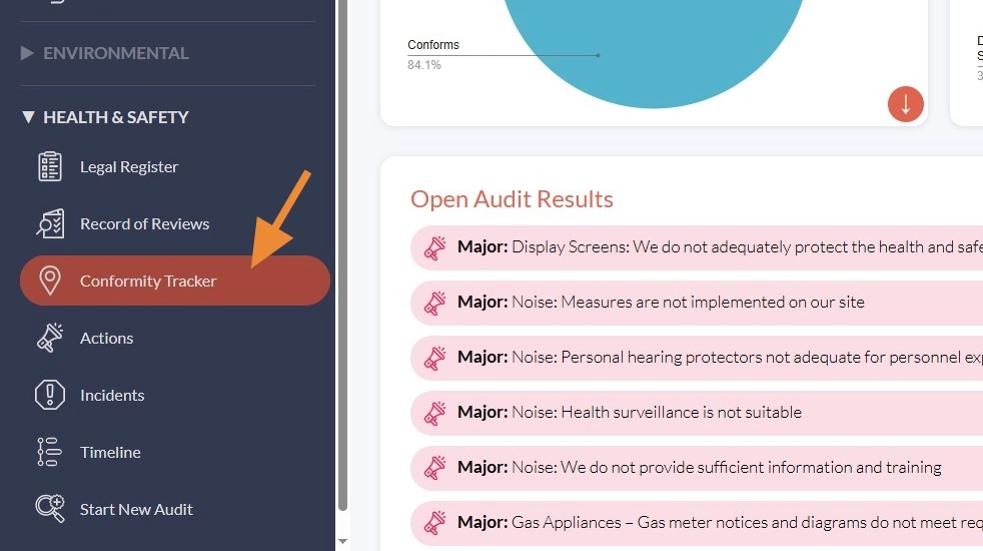
Open the Conformity Tracker via the left-hand menu to review insights generated from your iCOR audit responses.
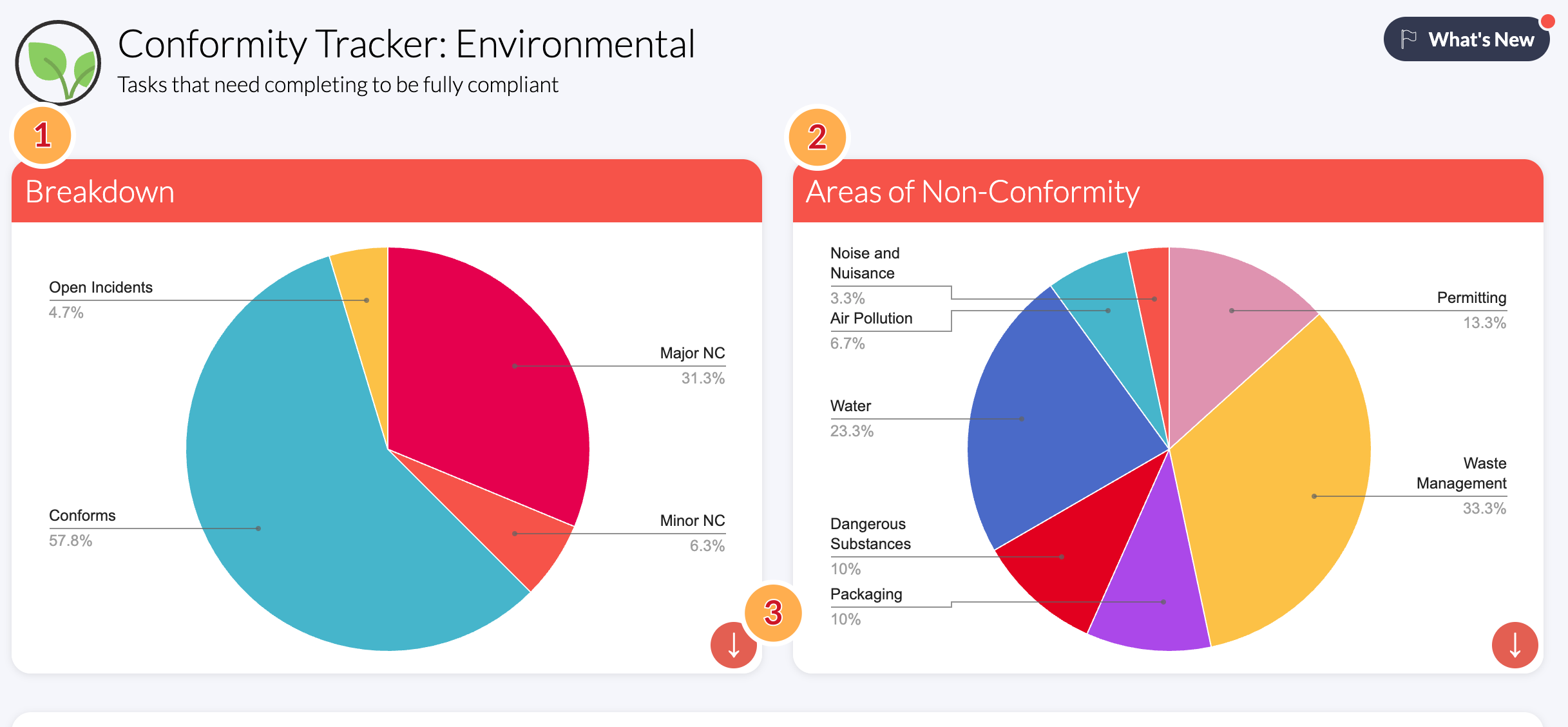
There are two overview charts to demonstrate the site's status of conformity:
- The first chart shows a high-level view of conformity by providing the percentage of non-conformities against the areas where the site conforms. It also shows any open incidents that would indicate non-conformity.
- The second chart breaks down the non-conformities into areas. In the example, this is split into environmental aspects. This functionality can help in planning and prioritising the vital gaps in compliance.
Use the download icon (3) next to each chart to export images for reports or presentations.

The items that are generated from responses to the iCOR audit are called Audit Results.
Open Audit Results lists all audit responses that require resolving, starting with Major and Minor non-conformities. These results indicate that current practices are not fully compliant with applicable regulations and, therefore, will require corrective action.
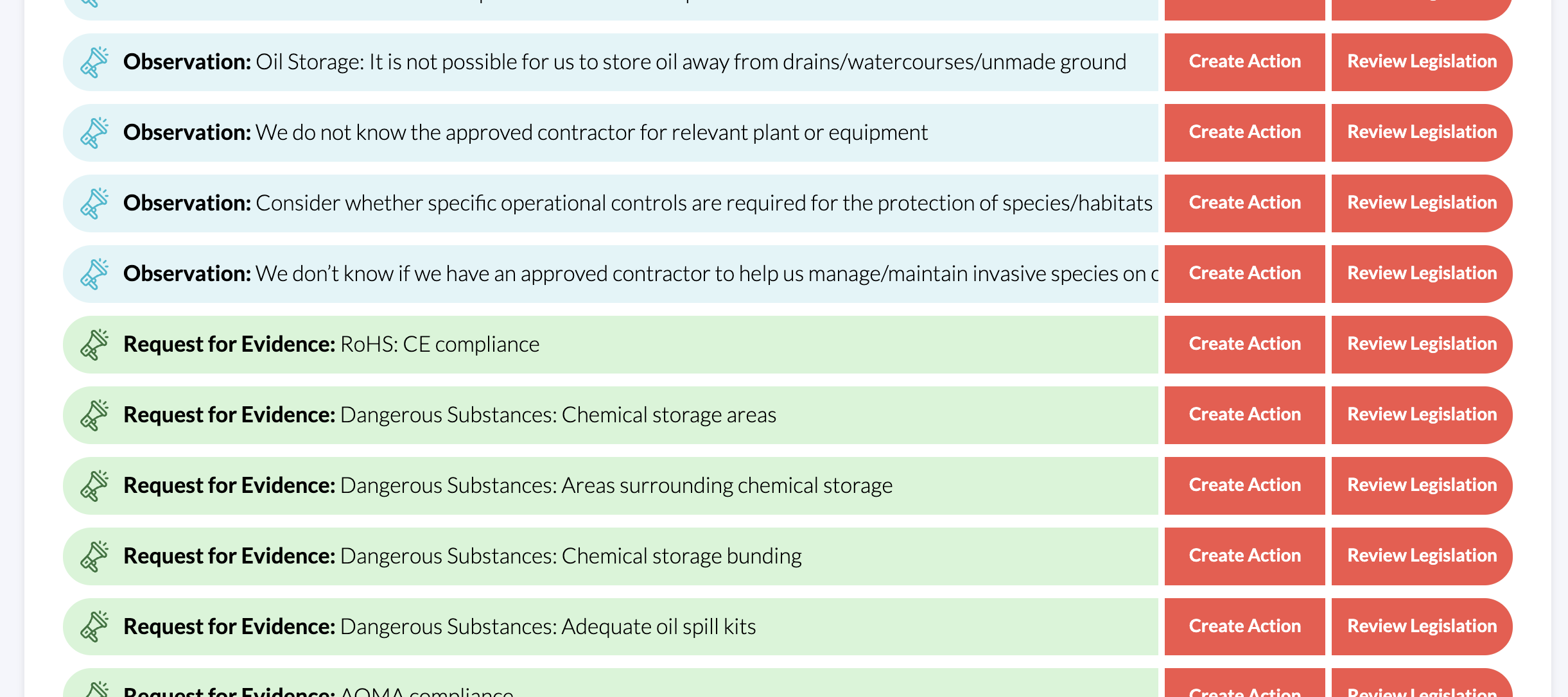
Observations capture items that require clarification and are typically the result of “I don’t know” answers during the audit.
Requests for Evidence require supporting evidence or documentation to demonstrate compliance, based on answers provided throughout the audit. In essence, this is where you can back up your claims with the proof.
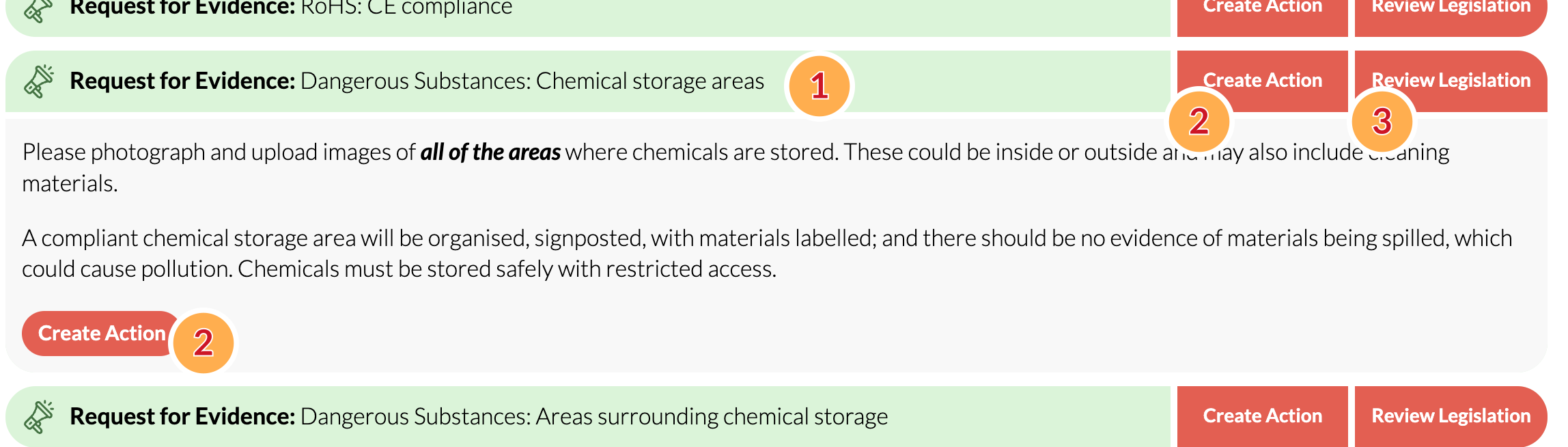
You can interact with any Audit Result in the following ways:
- Click on the coloured bar to expand the Audit Result. This will provide further information.
- Use one of the Create Action buttons to progress the Audit Result into an Action. Actions are covered in this section.
- Review Legislation takes you to the applicable legislation within the Legal Register for further information and context.
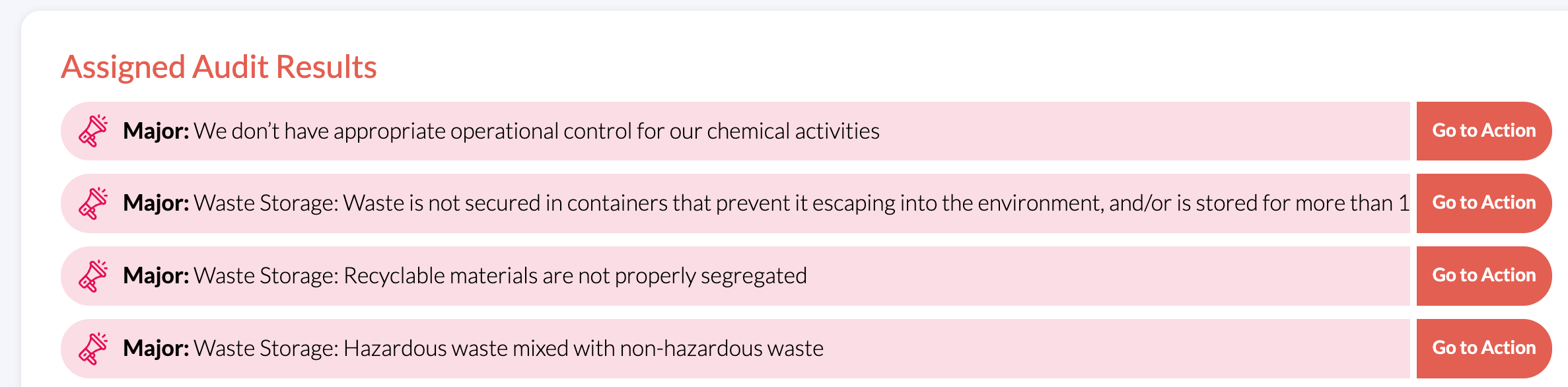
Once an Audit Result has been assigned as an Action, it will appear in the list blow, titled Assigned Audit Results, where you can quickly access them to keep track of their progress using the Go to Action button on each item.