
Responding to Actions
This article will explain how to respond to an action that you have been assigned to.
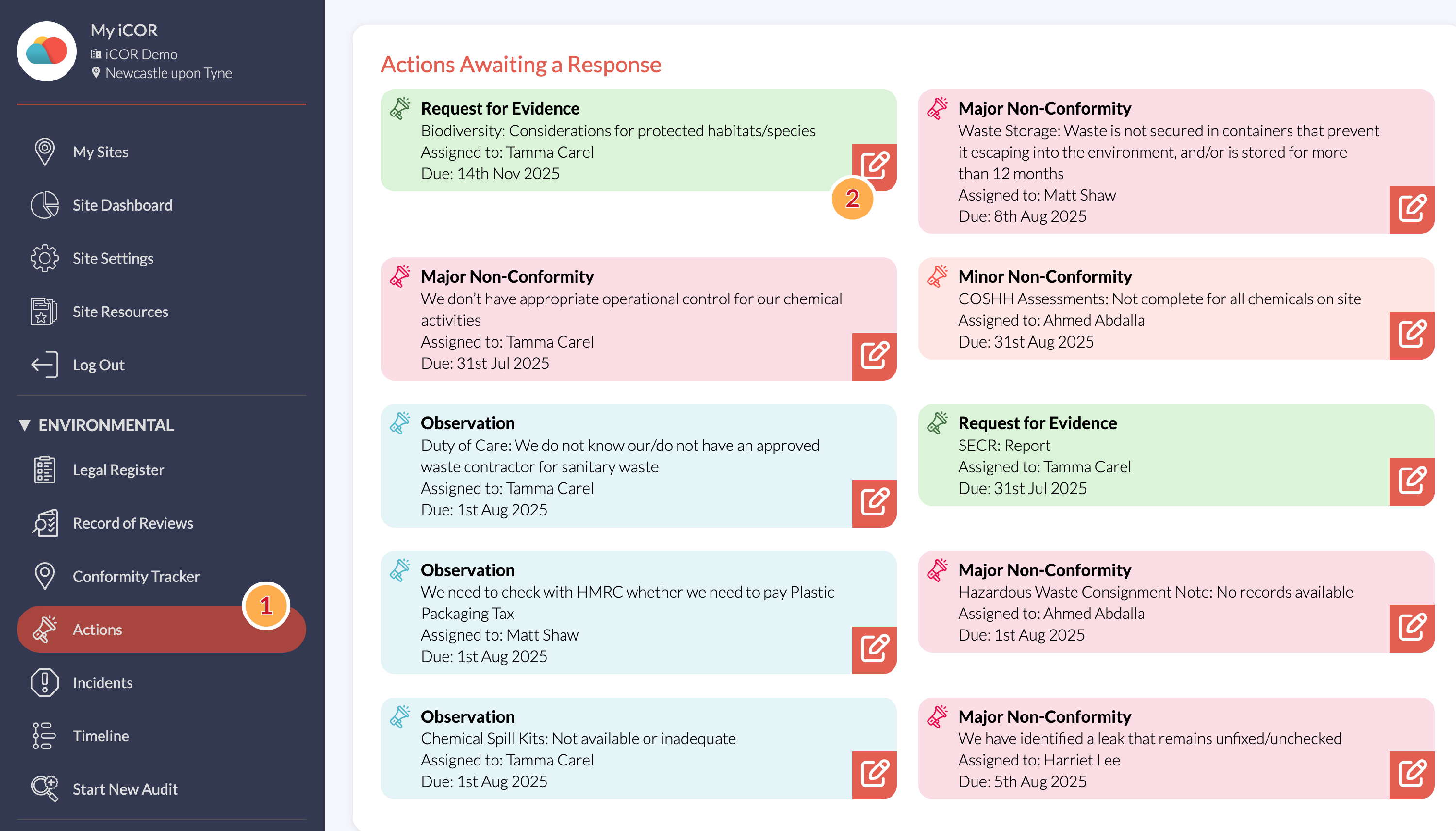
When an Audit Result has been assigned as an Action, they will appear in the Actions section, found on the left-hand menu (1).
Site Controllers will then be able to see Actions that have been assigned to colleagues under Actions Awaiting a Response.

The assignee for the action will see applicable Actions under My Actions.
The Action can be viewed and responded to by clicking on the red button (2) for Site Controllers, or by clicking Review (3) under My Actions, if the action has been assigned to you.
This will access the Report Cards.
Responding to a Request for Evidence
|
|
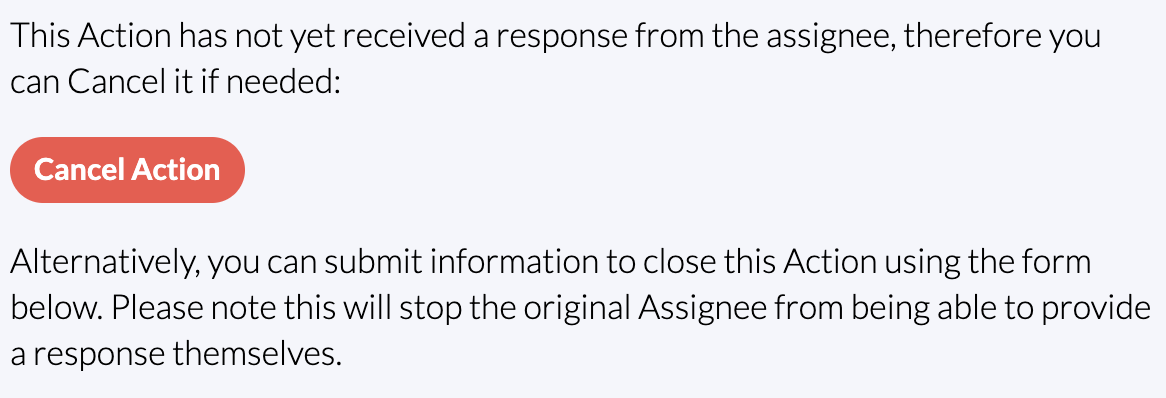
Site Controllers will have an additional option at the top of the page. If a mistake has been made, or the Action needs to be amended, or is no longer needed, it can be cancelled using this button, and then reassigned if necessary. |
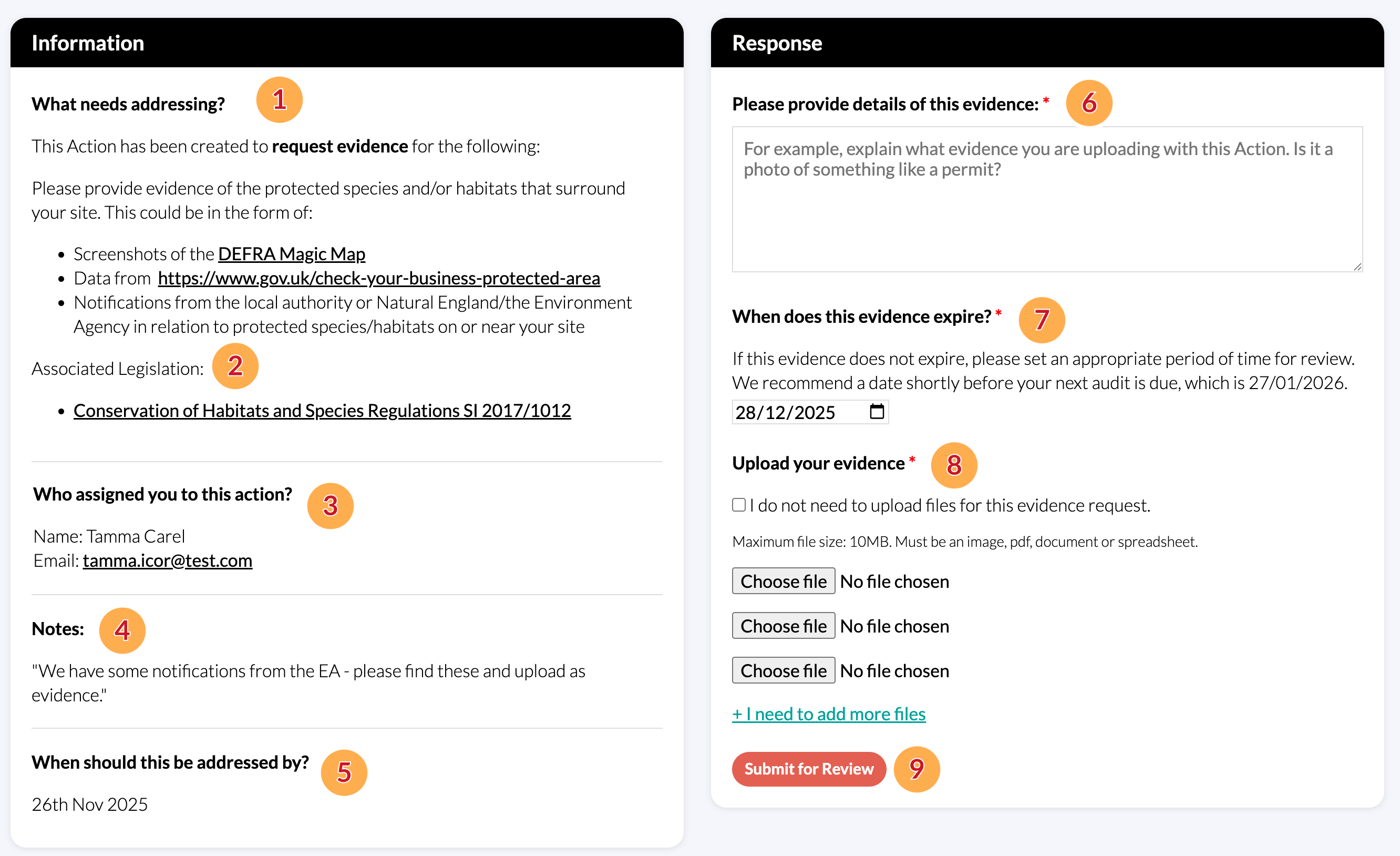
A list of actions that require a response can be found on the Actions page under the Actions Awaiting a Response heading. Both Site Controllers and Colleagues who have been assigned to the action can respond to a Request for Evidence. They are broken down into two 'report cards' (Information and Response) that contain the following elements:
- What needs addressing? The information provided by iCOR. This will provide instructions and further signposting on how to satisfy the Request.
- Associated legislation: A link to the legislation within your iCOR legal register for context.
- Who assigned you to this action? The name of the Colleague responsible for providing a response. If you assigned this action to a colleague, this report card will ask "Who is assigned to this Action?" instead.
- Notes: The notes provided by the Site Controller when assigning the Request.
- When should this be addressed by? The deadline for this Request.
- Details of this evidence: Part of the response to be given. It should explain the evidence being uploaded, or it could be a link to the evidence if this is a live document within the company's intranet, for example.
- When does this evidence expire? Setting an expiry date here means that this Request won't come up again in future audits until this date is reached. When it expires, the Request for Evidence will reappear in the Conformity Tracker and the Site Controller(s) will be notified. If it doesn't expire, please set an appropriate time for review of this evidence.
- Upload evidence: This allows you to either choose files to upload as evidence, or tick the box to say that no files are required. This would be in the case that you are able to provide a link, or a text explanation in the box at (6). You can upload more than 3 files if needed using the "I need to add more files" button.
- Submit for Review: When everything is completed, press this button to submit to the Site Controller for review and final sign-off.
Responding to a Non-Conformity or Observation
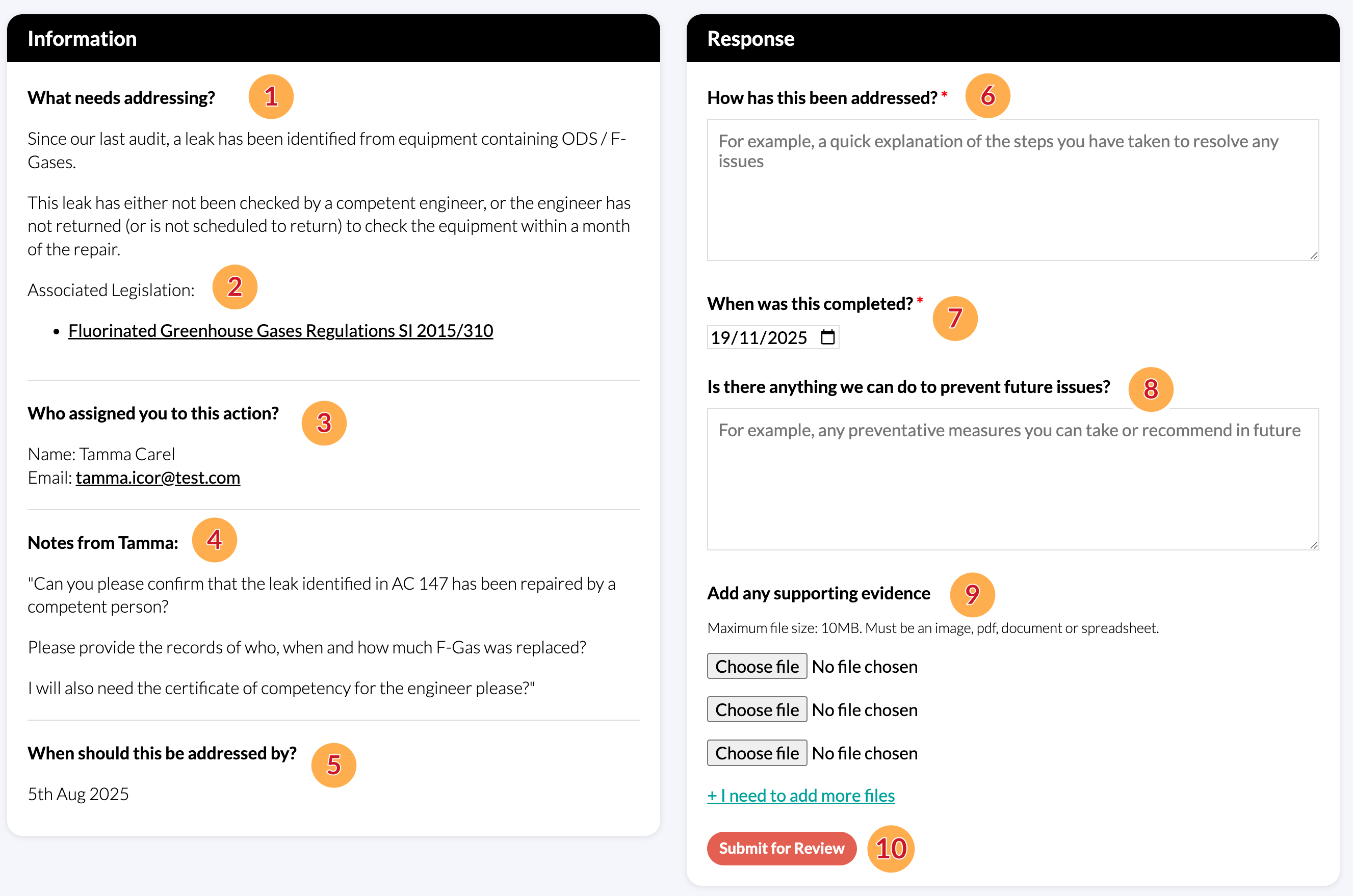
A list of actions that require a response can be found on the Actions page under the Actions Awaiting a Response heading. Both Site Controllers and Colleagues who have been assigned to the action can respond to a Non-Conformity or Observation. They are broken down into two 'report cards' (Information and Response) that contain the following elements:
- What needs addressing? The information provided by iCOR. This will detail the issue that has led to the non-conformity or observation, and some information on how to resolve it.
- Associated legislation: A link to the legislation within your iCOR legal register for context.
- Who assigned you to this action? The name of the Colleague responsible for providing a response. If you assigned this action to a colleague, this report card will ask "Who is assigned to this Action?" instead.
- Notes: The notes provided by the Site Controller when assigning the non-conformity or observation.
- When should this be addressed by? The deadline to rectify this non-conformity or observation.
- How has this been addressed? Part of the response to be given. Here the Colleague should detail the actions taken to remedy the non-conformity, or satisfy the observation. What has been done to resolve the issue?
- When was this completed? The date that this issue has been resolved. This may well be on a date that has already passed, but defaults to today's date.
- Preventing future issues: This is an optional field, but invites the Colleague to suggest preventative measures so that this issue doesn't occur again.
- Upload evidence: This allows you to choose files to upload as evidence, if relevant. You can upload more than 3 files if needed using the "I need to add more files" button.
- Submit for Review: When everything is completed, press this button to submit to the Site Controller for review and final sign-off.
Note: If the action is not resolved before the assigned deadline, iCOR will send weekly email reminders to the responsible person. (Adding iCOR to your safe emails list will ensure that the reminders won't be sent to spam).