
Timeline of Evidence
This article explains how to view and use iCOR's Timeline of Evidence, which shows your whole compliance history, clearly mapped and auditor ready.
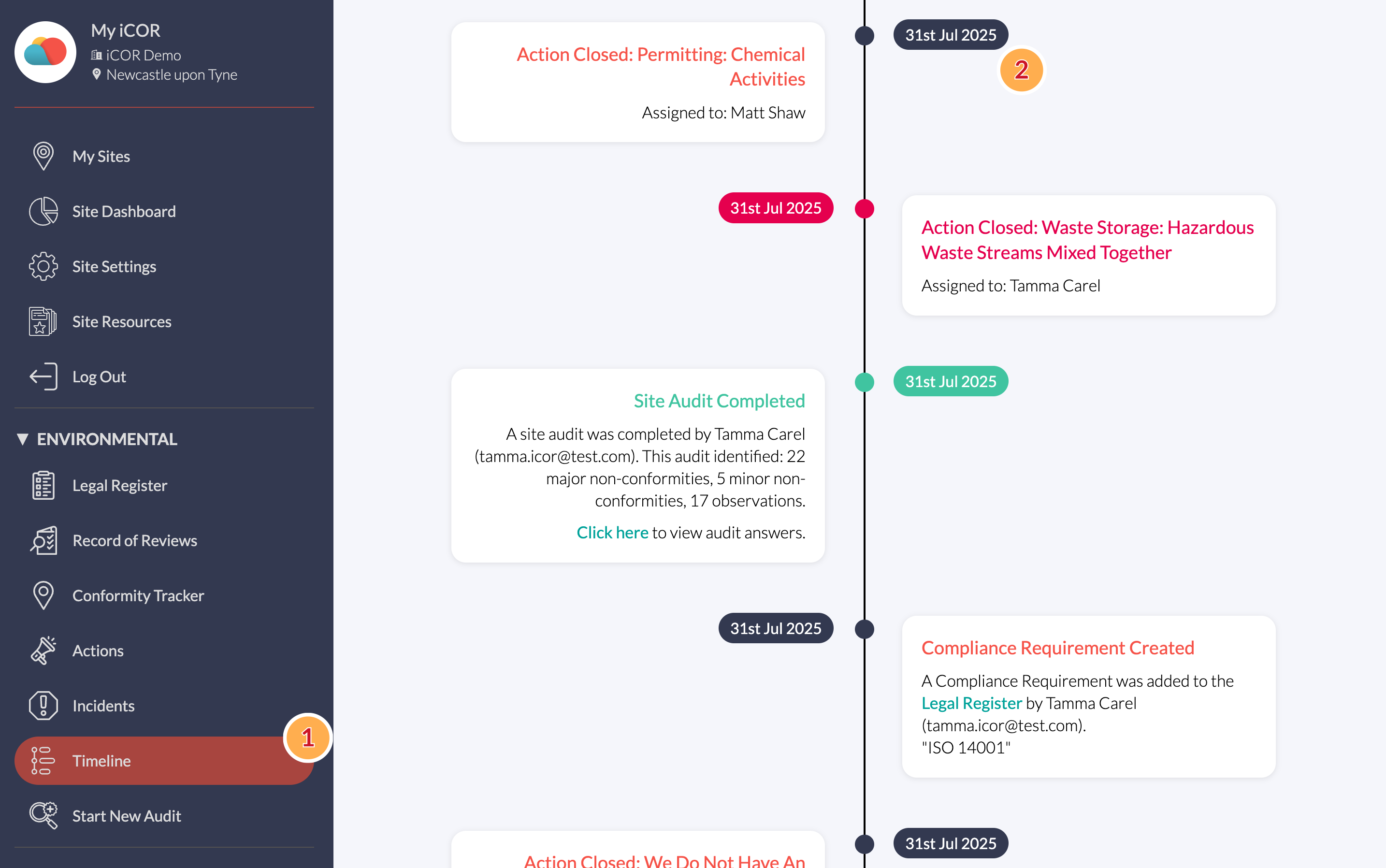
iCOR's Timeline presents audits, actions and incidents in chronological order. You can access the Timeline using the menu on the left (1).
This is vitally important for evidence and transparency in compliance. By logging everything in the timeline, it will be easier for internal and external auditors to verify your actions and activities for compliance, with all relevant evidence linked to the timestamp.
All activity is displayed as entries on the right of the screen (2) alongside the date that they occurred. Select any card to open the underlying record.
Site Controllers and Company Managers can use the Timeline to monitor progress, prepare evidence for inspections, support investigations and inform compliance reporting.

You are able to filter entries in the timeline:
- Filter items: Use this button at the top of the page to open the filter panel, which gives you further options.
- Entry types: You can toggle these options on and off depending on which item(s) you would like to view within the Timeline.
- Submit/Reset: Press Submit to apply the filters you have set. Reset will return the filters to their default state and show all entries again.
- Date options: You can also restrict the entries to between certain dates, or show only those since your last completed audit.
Examples of entries
The following are the types of entries that are visible on the Timeline. Each one links through to further information, report cards, a location in the legal register, etc.
| Site Audit Completed |
When a site audit is completed, this entry will be created. It will provide a summary including who completed the audit, and the results it identified. Users can also click through to the list of audit questions and answers given from this entry. |
| Action Closed (successful) | If an action is closed and it has solved the non-conformity or observation, or has provided sufficient evidence; this is logged on the timeline as a closed action. |
| Action Closed (unsuccessful) | If an action is closed and hasn't achieved the above, it is marked on the timeline with an additional banner to warn that this has not sufficiently solved the issue. |
| Incident Reported/Resolved | Incidents reported and resolved are also marked on the timeline. |
| Monthly Record of Review | To provide confidence for auditors and interested parties, we mark when the monthly review of legislation is completed by our team. |
| Record of Reviews Checked | Upon checking the Record of Reviews, the Site Controller can mark this as "Checked," which will log on the timeline to show that the site is maintaining awareness. |
| Compliance Requirement Created/Edited/Removed | Activity with "Other Compliance Requirements" within the legal register are logged here too |
| Site Settings Changed | If site settings are changed, it is summarised in these entries. These are the only entries that do not link to elsewhere. |
Why it matters: A single view of activity and evidence simplifies updates to stakeholders and preparation for inspections.