
Navigating and editing your Aspects Register entries
This article will cover how to move around your Register, how to edit Aspects, and how to add the required further information to the suggestions provided by iCOR.
Please note that the Environmental Aspects Register is an optional add-on for the Environmental module. Please contact us if you would like to discuss including it in your subscription.

For a more condensed view of the Aspects Register, you can use the collapse buttons on the main headings, which will reduce the columns to just the essential information, and fit onto a screen without the need to scroll horizontally.
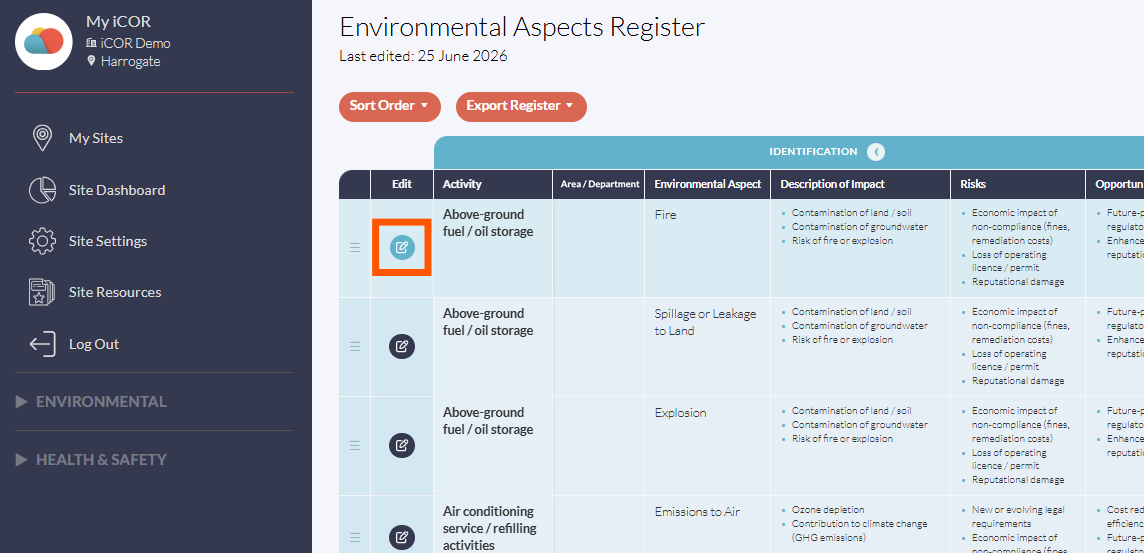
When expanded, you can move around the Aspects Register by scrolling up and down, scrolling left to right using a trackpad, or holding click and dragging the table left/right/up/down using a mouse.
To review and edit an Aspect, begin by selecting the Edit icon in the ‘Edit’ column of the aspect you wish to review.
|
|
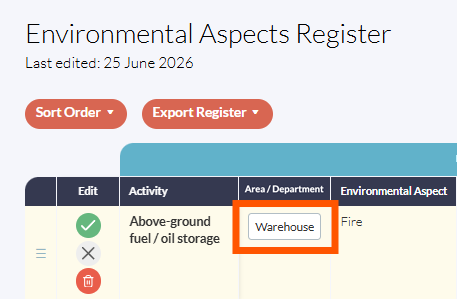
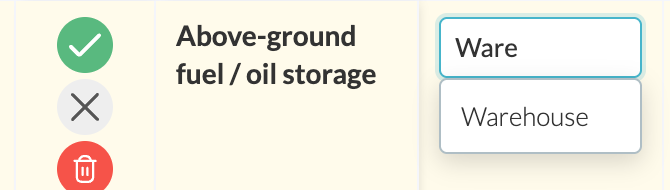
You must add information to the ‘Area / Department’ column to indicate where this activity and aspect is relevant on your site. Select the text box in that column, and type your answer. In order to avoid duplicate areas or departments due to typed discrepancies, the box will start to autocomplete after you have typed 2 characters, if a matching area or department exists in your current or archived registers.
|
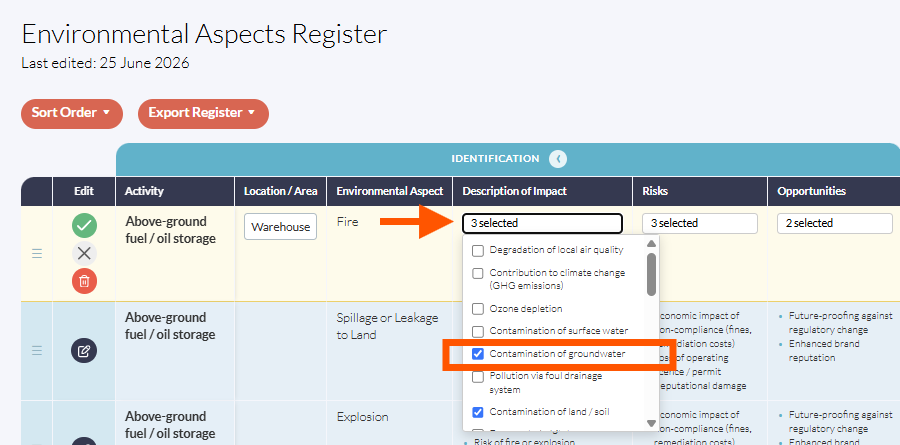
Next, review the following columns:
- ‘Description of Impact’
- ‘Risks’
- ‘Opportunities’
If you agree with the items selected, you can move onto the next section.
If you disagree with any of the items selected, please select the box under the affected column and select or deselect items as you see fit.
Please note that the content of these drop-downs is preset and have been written considering the ISO standard, where the definitions of 'Impact', 'Risks' and 'Opportunities' are very specific.
Now that you have reviewed the ‘Identification’ section for that aspect, click and drag to navigate to the ‘Significance Assessment’ section for that aspect.
|
|
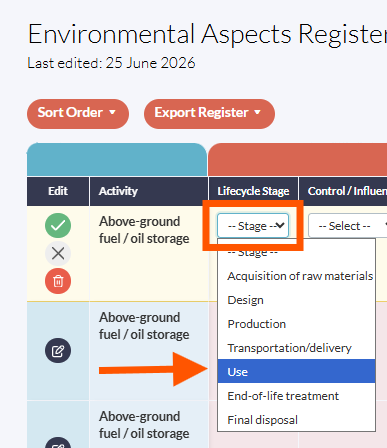
Select the ‘--Stage–’ box in the ‘Lifecycle Stage’ column. From the dropdown menu, select the lifecycle stage that is most relevant to this aspect. Then, select the ‘--Select–’ box in the ‘Control / Influence’ column. From the dropdown menu, select Control or Influence (as appropriate) to demonstrate your site’s relationship with this aspect. For example, most third-party aspects are something you can Influence, whereas internal aspects you may be able to Control. |
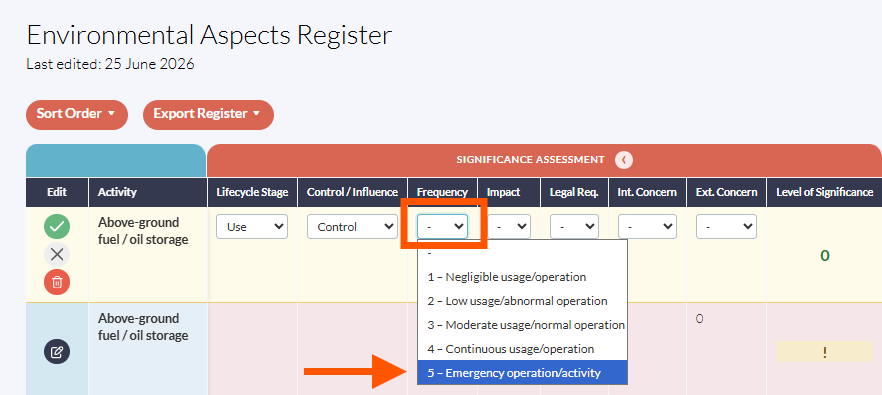
Select the box in the ‘Frequency’ column. From the dropdown menu, select the most accurate frequency of the aspect to demonstrate how often this aspect is relevant to the site.
Repeat this process for the boxes in the following columns:
- ‘Impact’ - From the dropdown menu, select the most accurate impact of the aspect on your site.
- ‘Legal Requirements’ - From the dropdown menu, select the most accurate answer to demonstrate how regulated the aspect is.
- ‘Internal Concern’ - From the dropdown menu, select the most accurate answer to demonstrate how significant the impact is within your business.
- ‘External Concern’ - From the dropdown menu, select the most accurate answer to demonstrate how significant the impact is outside of your business.
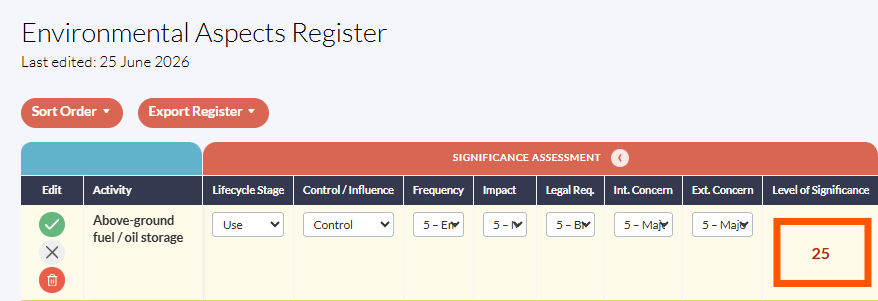
Once you have given a score for each of these columns, iCOR will calculate a score between 5 and 25 to demonstrate the significance of the aspect. This will be automatically calculated in the ‘Level of Significance’ column.
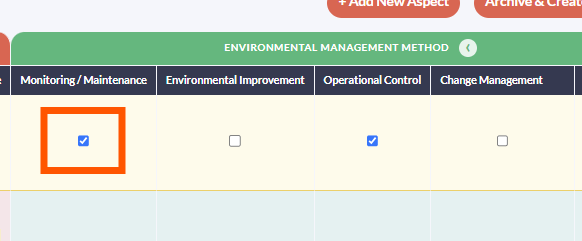
Now that you have reviewed the ‘Significance Assessment’ section for that aspect, click and drag to navigate to the ‘Environmental Management Method’ section for that aspect.
Select one or more of the checkboxes from the following columns, as relevant to your site:
- ‘Monitoring / Maintenance’ - Select this if your site will manage the aspect through monitoring and maintenance.
- ‘Environmental Improvement’ - Select this if your site will manage the aspect through continuous improvements.
- ‘Operational Control’ - Select this if your site will manage the aspect through Operational Controls, such as per an Operational Control procedure.
- ‘Change Management’ - Select this if your site will manage the aspect through Change Management, such as per a Change Management procedure.
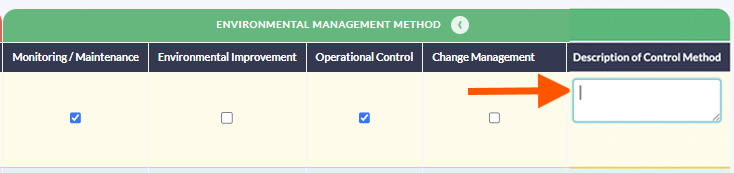
Add any further information by clicking the text box in the ‘Description of Control Method’ column and typing. This could include:
- The file names of relevant documents, such as policies or procedures.
- Links to internal documents on your intranet or similar (any URLS will automatically turn into hyperlinks when the row is saved).
- A description of what environmental controls are already in place, such as specific equipment or training that has been implemented to manage the aspect.
- Any other information that may be relevant to that aspect.
|
|
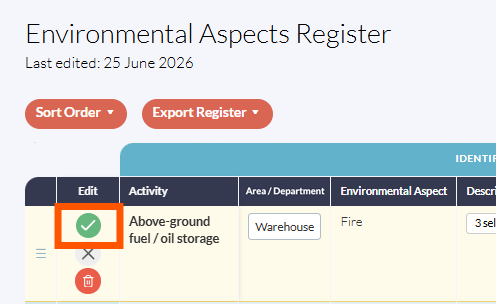
Finally, find the ‘Edit’ column, which will have followed you along the rows. Select the green tick button to save your changes. You can also use the grey X button to cancel your changes, or the red Bin button to delete the aspect row. Repeat this process for the remaining aspects in your Aspect Register. |
All Site Controllers can perform and contribute to an Aspects Register, but we would recommend that only one user should edit on the Aspects Register at a time to prevent duplicated or conflicting information.