
Setting up your iCOR account
This article will guide you through how to set your audit frequency and invite your colleagues to iCOR.
First, follow the steps here to log into your iCOR account.
Note: Only Company Managers and Site Controllers can access these settings.

From the iCOR dashboard, open Site Settings in the left navigation menu to manage the following settings for your site:
- The name of the site.
- Per-topic settings including:
- Audit start date: This will determine the start date for your audit schedule (this date will not be used if you have already completed an audit, instead it will use the date of that audit).
- Audit frequency: Typically 6 months, this will schedule reminders for you to complete your next audits.
- Save changes: Please press this button when changes are made in order for them to be saved.

On the same Site Settings page, you are also able to manage your team members.
- Add new team member: Invite your colleagues by filling in their name and email.
- Edit details: You can change the name of a colleague here. If an email address needs editing, please contact our support.
- Archive users: Users can be archived when their access needs to be restricted, or if they're no longer working for the company, etc. They cannot access the site, but their history in the audit trail will be retailed. You will not be able to archive any users with open actions assigned to them, or users that have certain higher permissions.
- Archived colleagues: This section shows users that have been archived. They can be edited or unarchived as long as you have a seat available for them.
We have prepared a template email that we recommend sending from your internal mail account first to let your colleagues know that the business has subscribed to iCOR and to let them know to expect an invitation to set up an account. This will prevent your team from assuming that the invitation is spam or a potential cyber threat:
Subject: iCOR – access coming your way
Hi [Name],
I’ve invited you to join iCOR, the system we use to manage our environmental / H&S legal compliance and actions.
You’ll receive an automated welcome email shortly with login details – it’s not spam and does require action.
Any issues, just let me know.
[Your name]
|
Company Managers are able to assign users as Site Controllers. We recommend that only those who need the additional privileges are set as Site Controllers. |
|
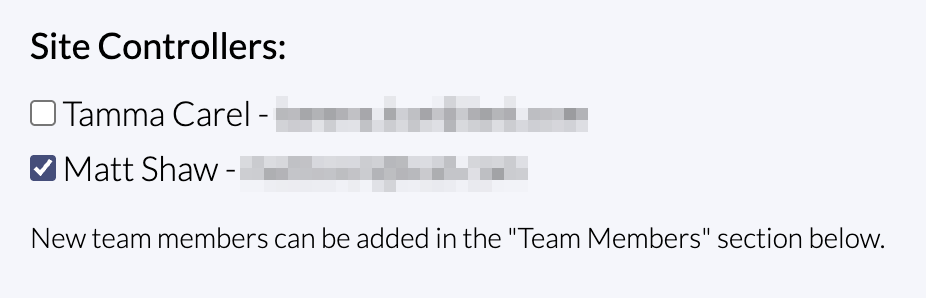
User levels and their permissions:
| Colleague | Site Controller | Company Manager |
| Can view a completed legal register. | Can do everything listed under "Colleague." | Can do everything listed under "Colleague" and "Site Controller." |
| Can view the record of reviews. | Can view the conformity tracker. | Can assign users as "Site Controllers." |
| Actions can be assigned to all colleagues set up on iCOR. | Can view the timeline of evidence. |
|
| Incidents can be assigned to all colleagues set up on iCOR. | Can perform a site audit. |
|
|
|
Can assign actions to other users (or self). |
|
|
|
Can review completed actions and close them. |
|
|
|
Has full control over incidents. |
|
|
|
Can add users at the "Colleague" level. |
|
|
|
Can edit/archive users. |
|