
Creating Actions
This article will explain how to create and assign Actions through iCOR's Action section.
Note: Only Company Managers and Site Controllers can create and assign Actions
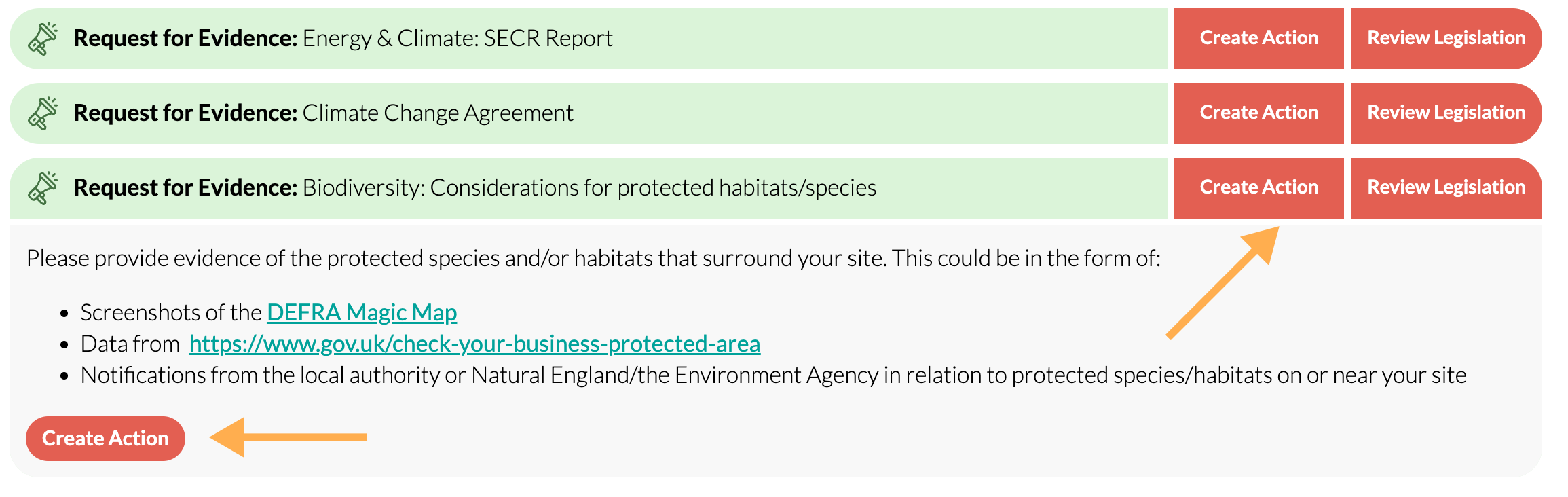
To turn an Audit Result into an Action, locate the non-conformity, observation or request for evidence that you wish to address. Click Create Action beside that item, or if you have expanded it, there is also a Create Action button at the bottom of the new panel.
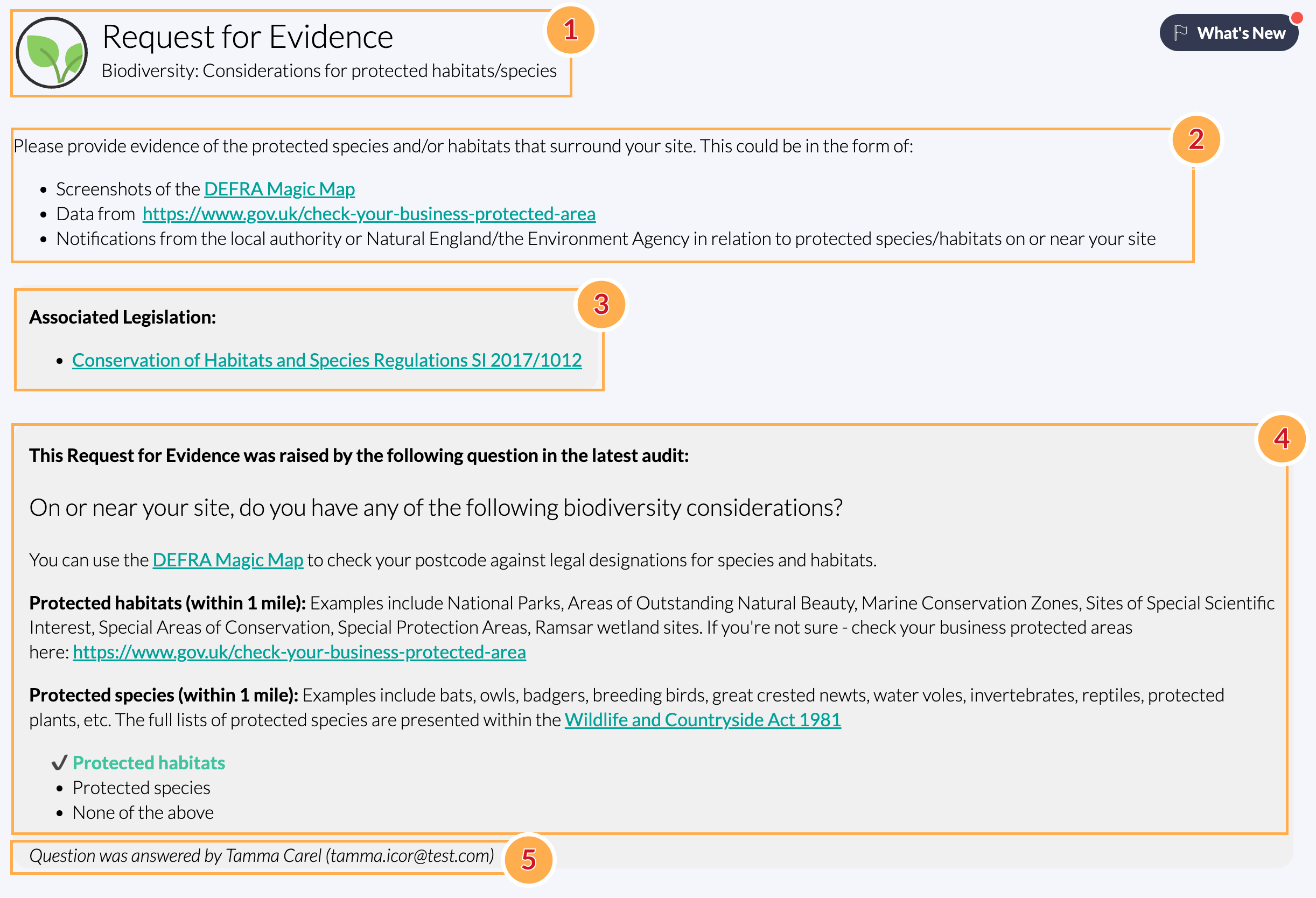
This will open the Action Creation Form, which will provide the following information:
- Type of Audit Result and its title.
- Further information to help you know what action needs to be taken, or what evidence needs to be collected.
- The legislation that it applies to, with a link to the legislation in your Legal Register.
- The question that was asked in the iCOR audit that created this Audit Result, and your answer to this question. (If this result was created by more than one question, the first one that triggered it will be displayed here).
- The user who answered this question within the iCOR audit.
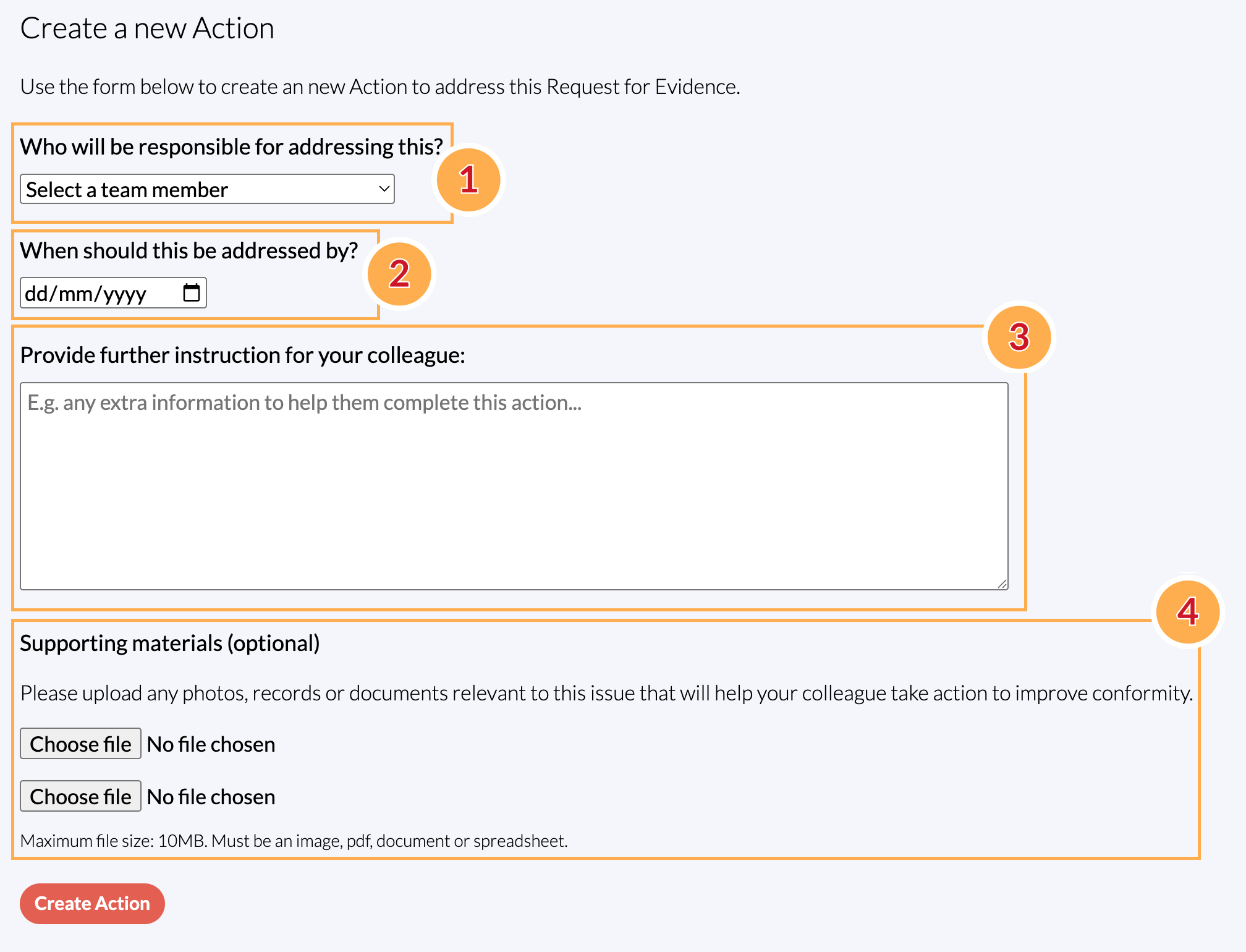
To create an action, scroll down to Create a new Action and fill in the required sections:
- Assign responsibility to a colleague. You can add colleagues by following the steps here. You can assign these to yourself too, if you are the best person to deal with the Audit Result.
- Set a deadline for the action. iCOR will automatically alert the colleague if this deadline is missed.
- Provide additional instructions for your colleague that may help them to complete the action.
- Upload any supporting materials to provide additional context. File types are limited to images, PDFs, documents or spreadsheets.
This will trigger an email to the assigned colleague, who will then be able to log into their account to see the actions assigned to them.