
Reviewing Actions
Site Controllers will need to review and sign off any actions that are responded to. This article explains the process of reviewing and signing off actions.

Actions that require review and sign-off can be found on the Actions page, under the Actions Waiting for Review heading. To access more information, click the Review button to the right of the action. This can only be seen and performed by Site Controllers or Company Managers.
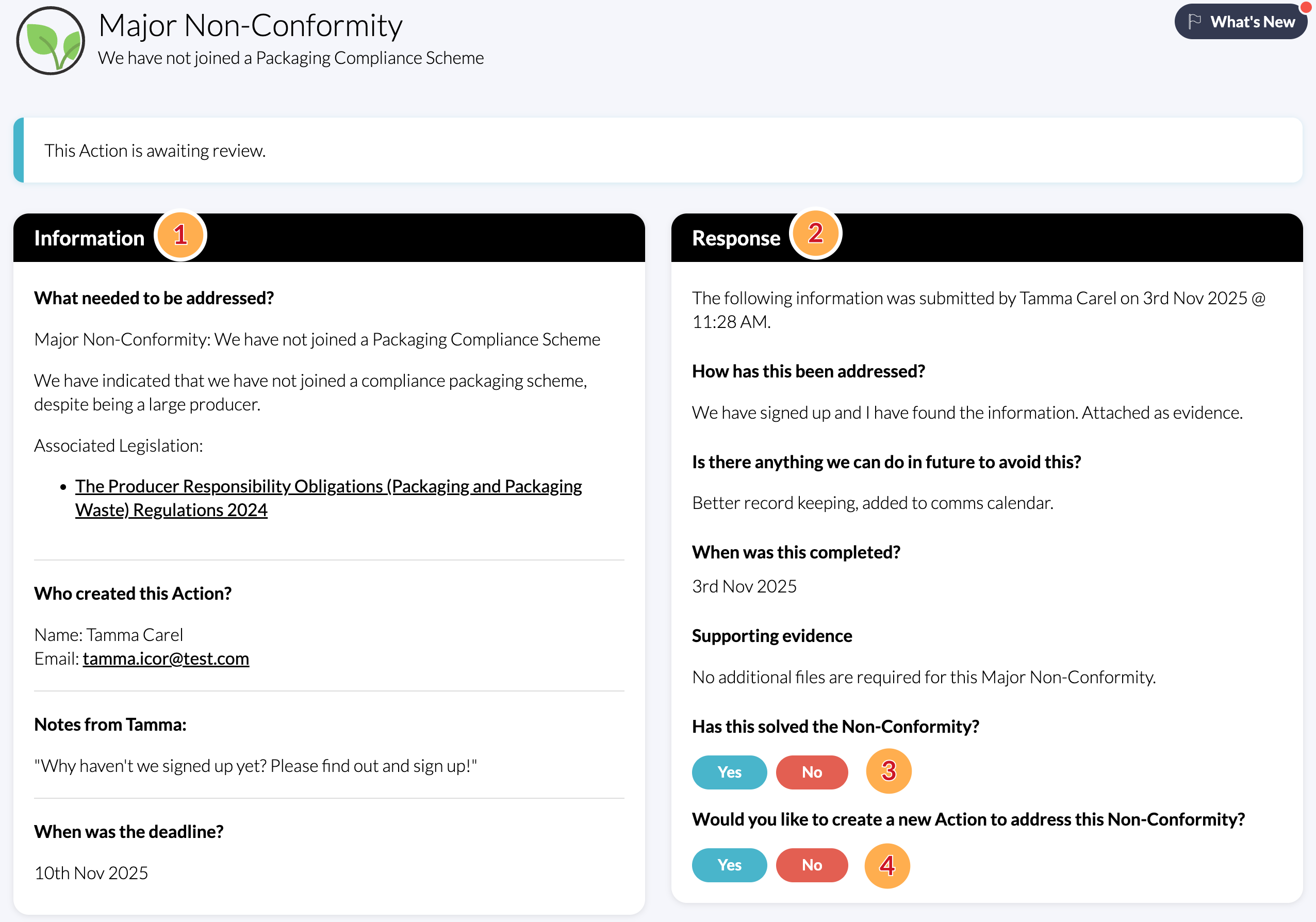
The report cards that are associated with the Action show the following information and require the following sign-off actions:
- Information as initially provided by the Site Controller who assigned the Action. This is described in more detail in the Creating Actions article.
- Response to the action as provided by the Colleague to whom the Action was assigned. This is described in more detail in the Responding to Actions article.
- Has this solved the Non-Conformity? The first question asked by this process:
- Answering Yes will resolve the non-conformity (in this case), Observation, or Request for Evidence, and move the Action to Closed Actions on the Actions page. All data on the Conformity Tracker page will also update.
- Answering No will open up the next question
- Would you like to create a new Action? Allows you to assign the action again and repeat this process.
Note: This process is the same for Non-Conformities, Observations and Requests for Evidence.
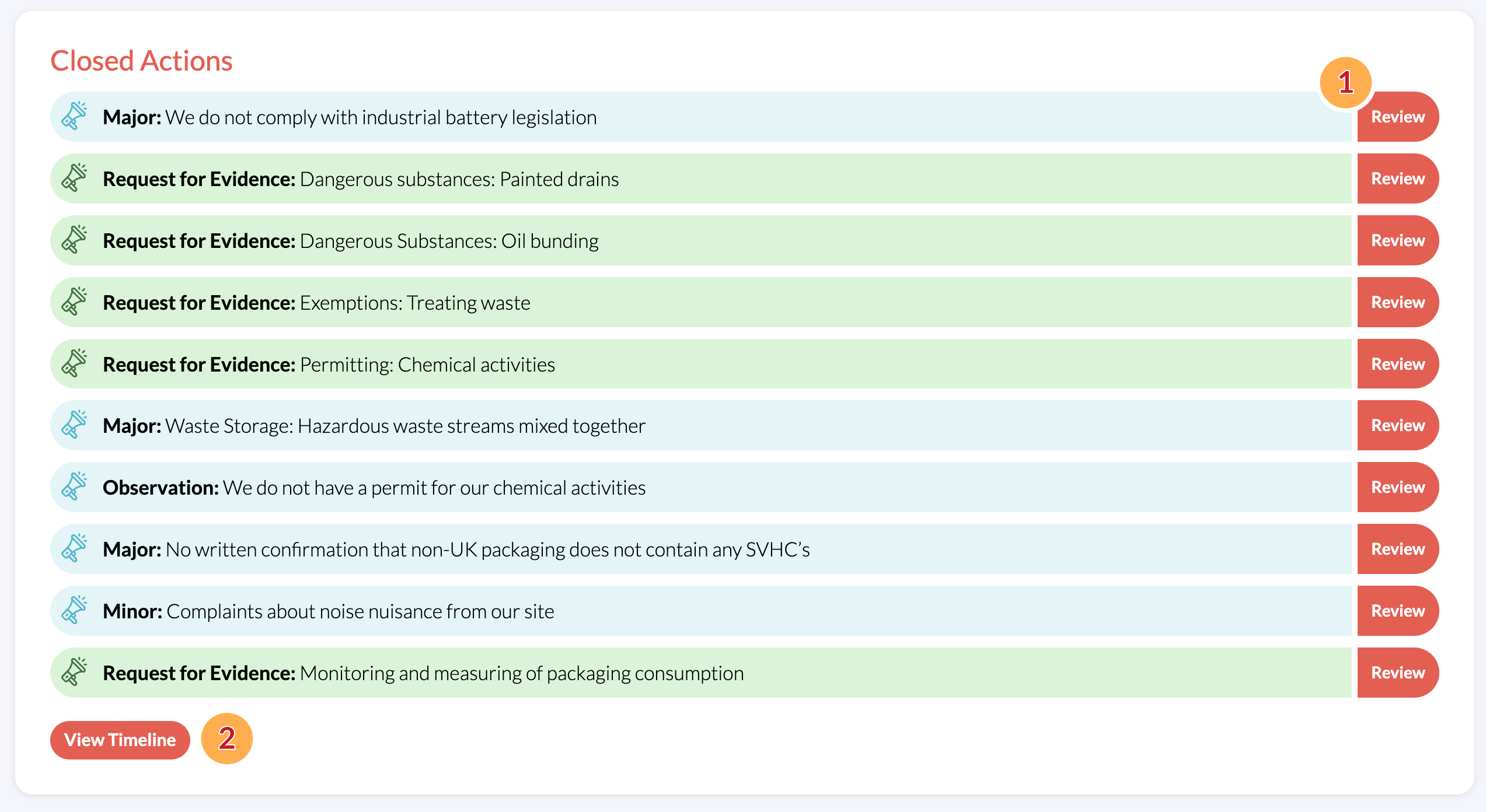
All Actions that have been resolved will be considered Closed Actions. The most recent ten of these are visible under Closed Actions on the Actions page. You can:
- Review each of these to bring up the report cards as in the step above
- View the Timeline to see all past actions amongst all other events that have occurred within iCOR.